Magic Mic is #1 on Product Hunt
Try now
Products
Product
Create
Transform your workflow capture into professional tutorials in minutes.
Broadcast
Put your knowledge inside the apps your team already works in, so the answer finds them.
Ask
Stop searching, start asking. Direct, cited answers from the library you already built.
Guidde Magic Mic
Polished narration in one take
Solutions
By Use Case
Customer Education
Build customer confidence
Employee Onboarding
Personalize learning by role
AI Adoption
Drive everyday AI use
Change Management
Simplify organizational change
Talent Development
Unlock employee growth
Digital Transformation
Accelerate digital adoption
Guidde for Enterprise
Scale knowledge across teams
By Application
Microsoft Dynamics 365
Minimize how-to support requests
SAP
Explain processes visually
NetSuite
Reduce errors with self-serve video guiddes
SalesForce
Standardize CRM workflows
HubSpot
Shorten the HubSpot learning curve
ServiceNow
Reduce confusion in the flow of work
Workday
Boost workforce confidence
Use Cases
How it Works
Security
Integrations
Gallery
Pricing
Blog
Customer Stories
Resources
Resources
ROI Calculator
Estimate your time and cost savings
Customer Stories
See real customer results
Blog
Ideas, tips, and product news
Help Center
Find answers and how-tos
Sign up
It’s super easy &
no credit card required!
Log in
Get Started
Get Started
Request a Demo
Contact Sales
start now
request a demo
How to configure web widget on Zendesk
Guidde
Watch on Guidde
Zendesk - Configuring web widget
Powered by
Guidde
Scott Visagie • Dec 23, 2022
17 steps • 1 minute read
Web Widget includes multiple components that you can turn on or off, or customize.
Go to
selectivehardware.zendesk.com
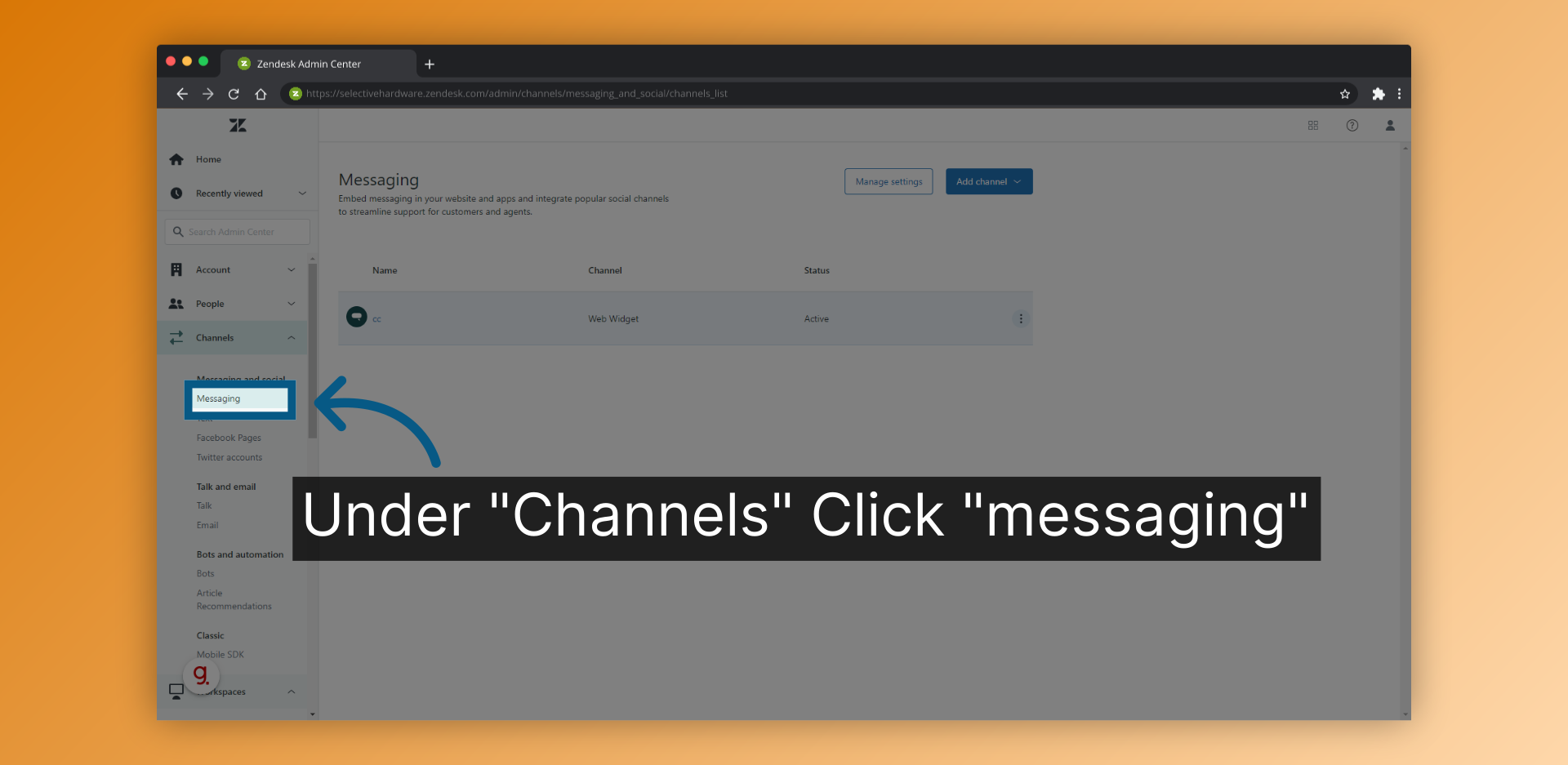
1. Under "Channels" Click "messaging"
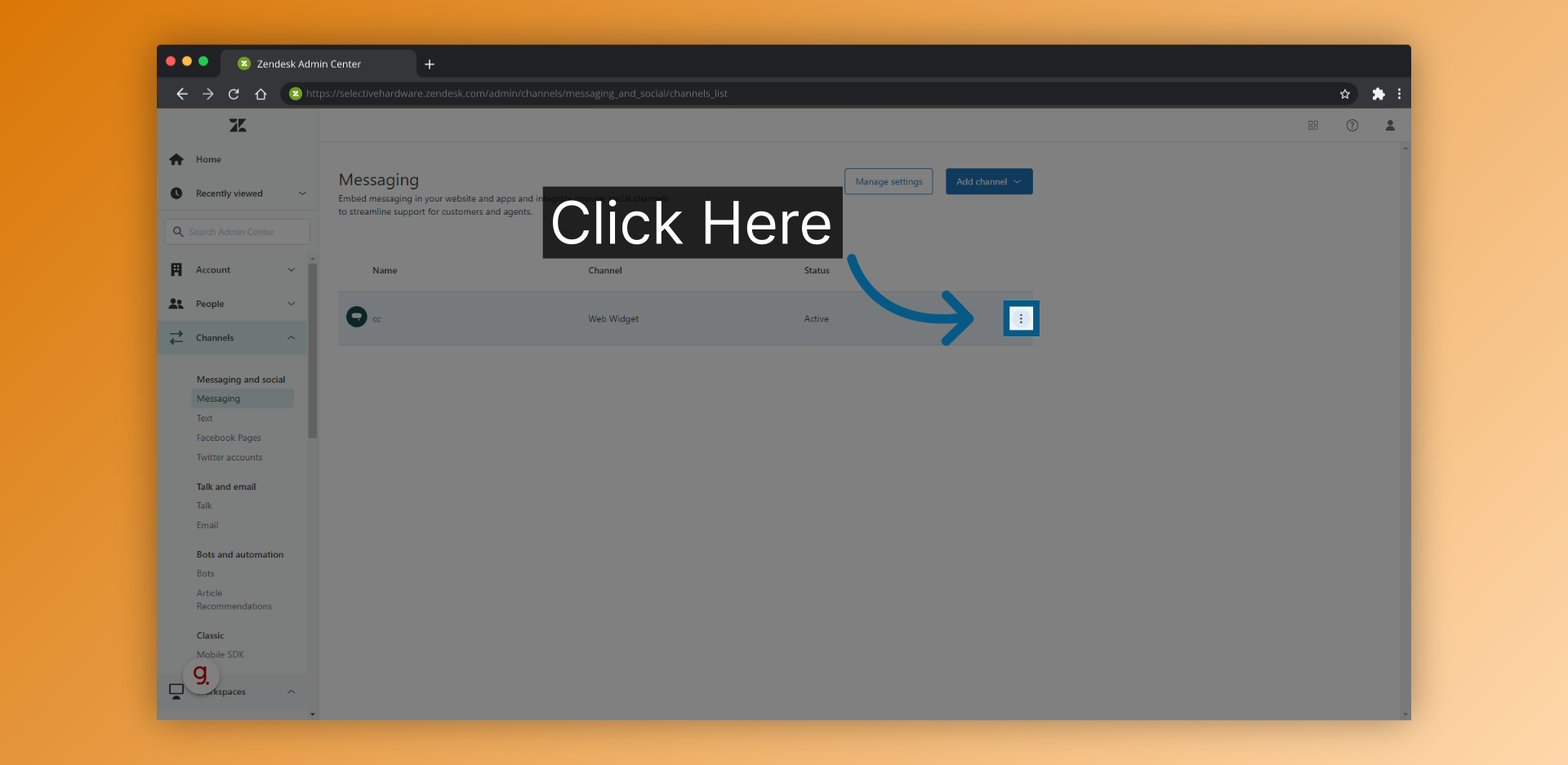
2. Click Here
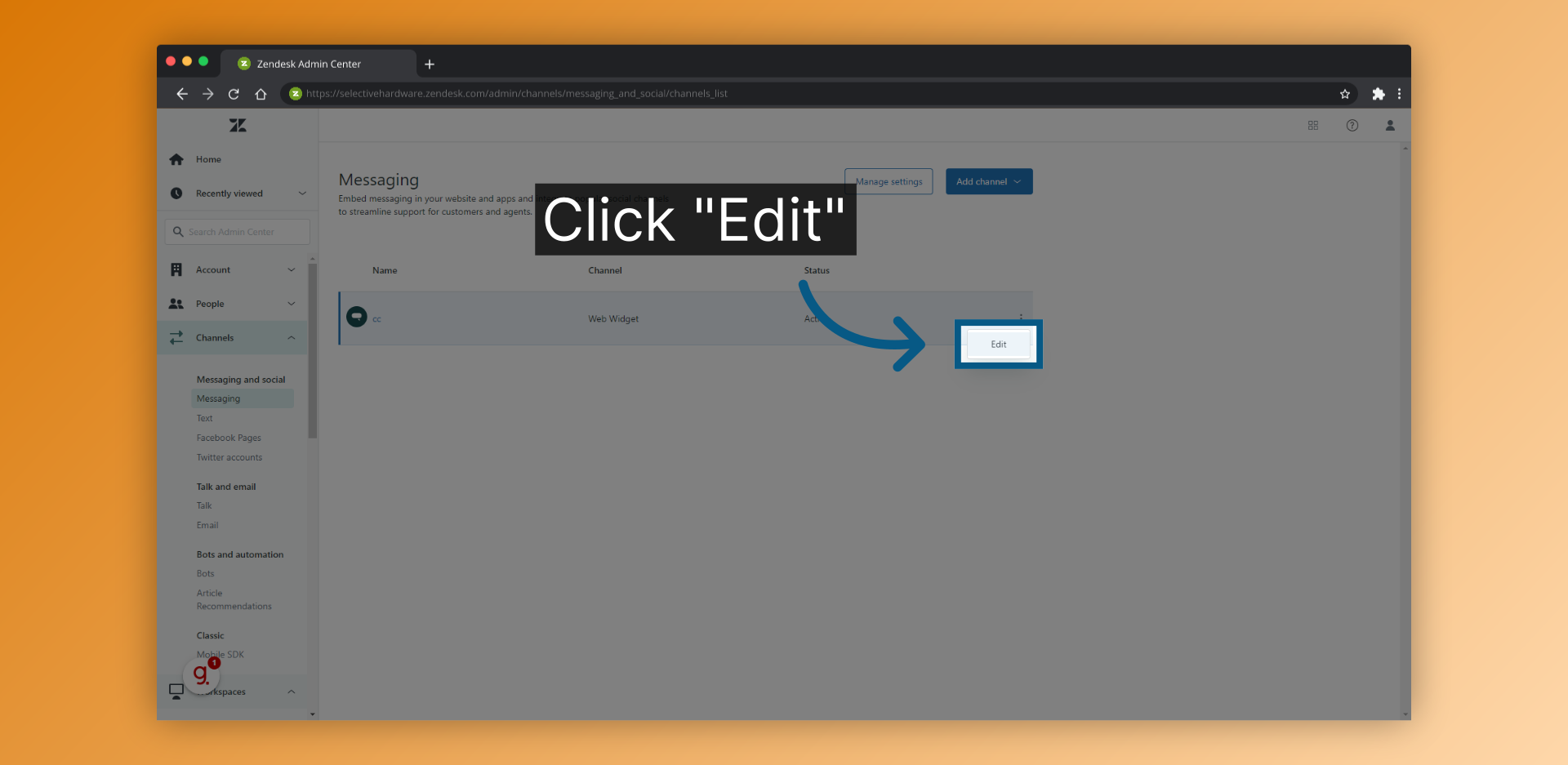
3. Click "Edit"
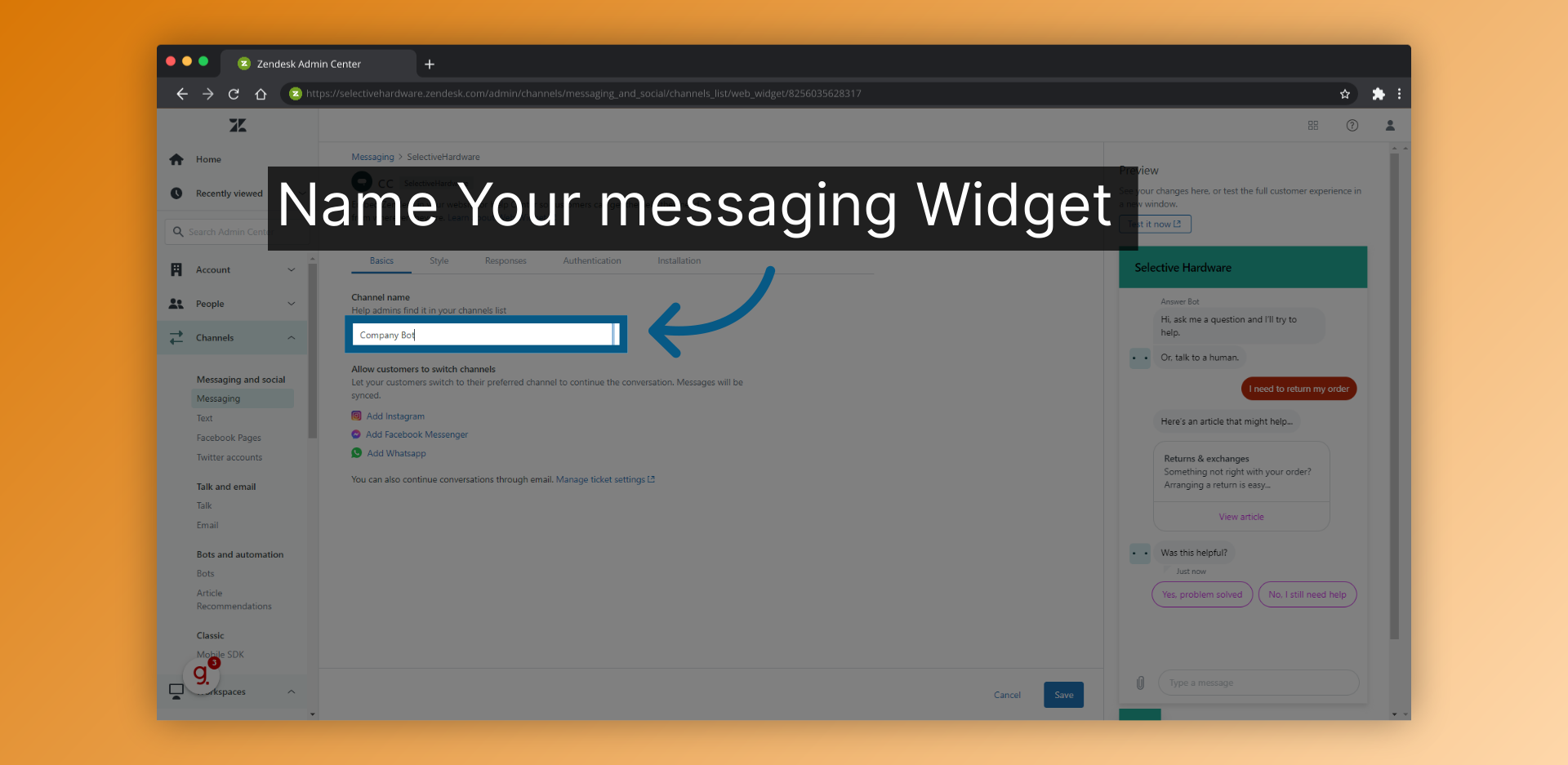
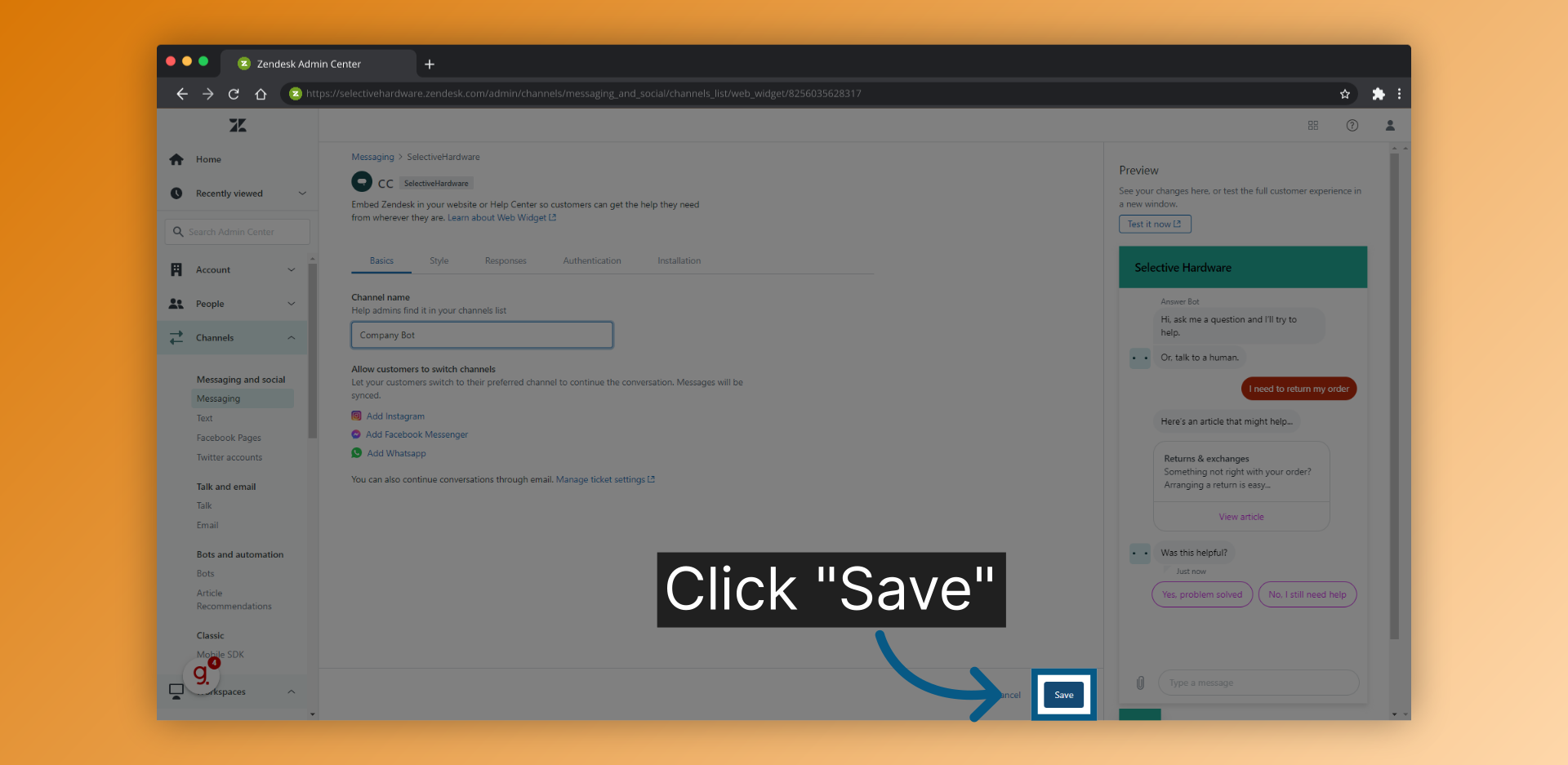
4. Name Your messaging Widget
5. Click "Save"
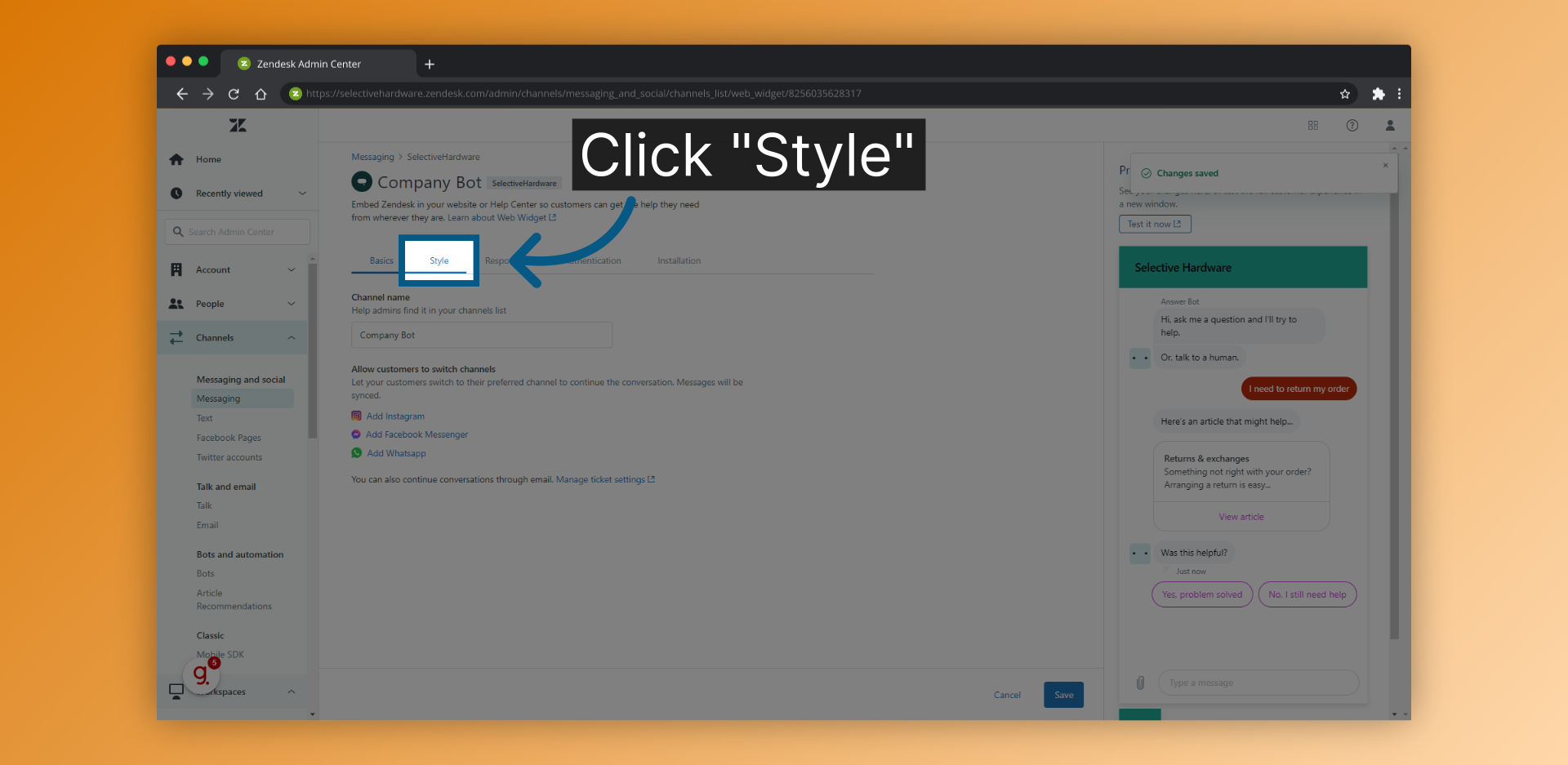
6. Click "Style"
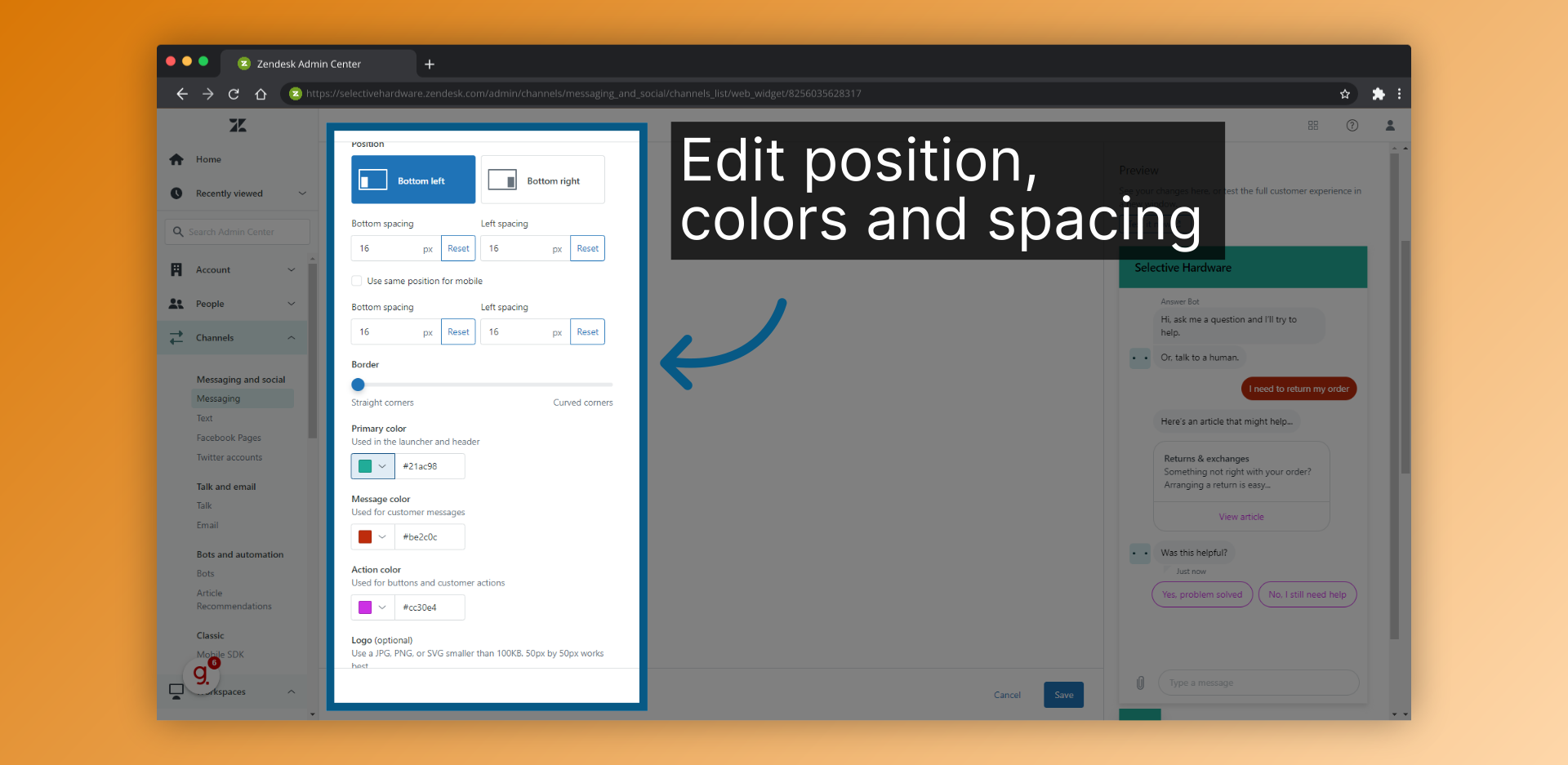
7. Edit position, colors and spacing
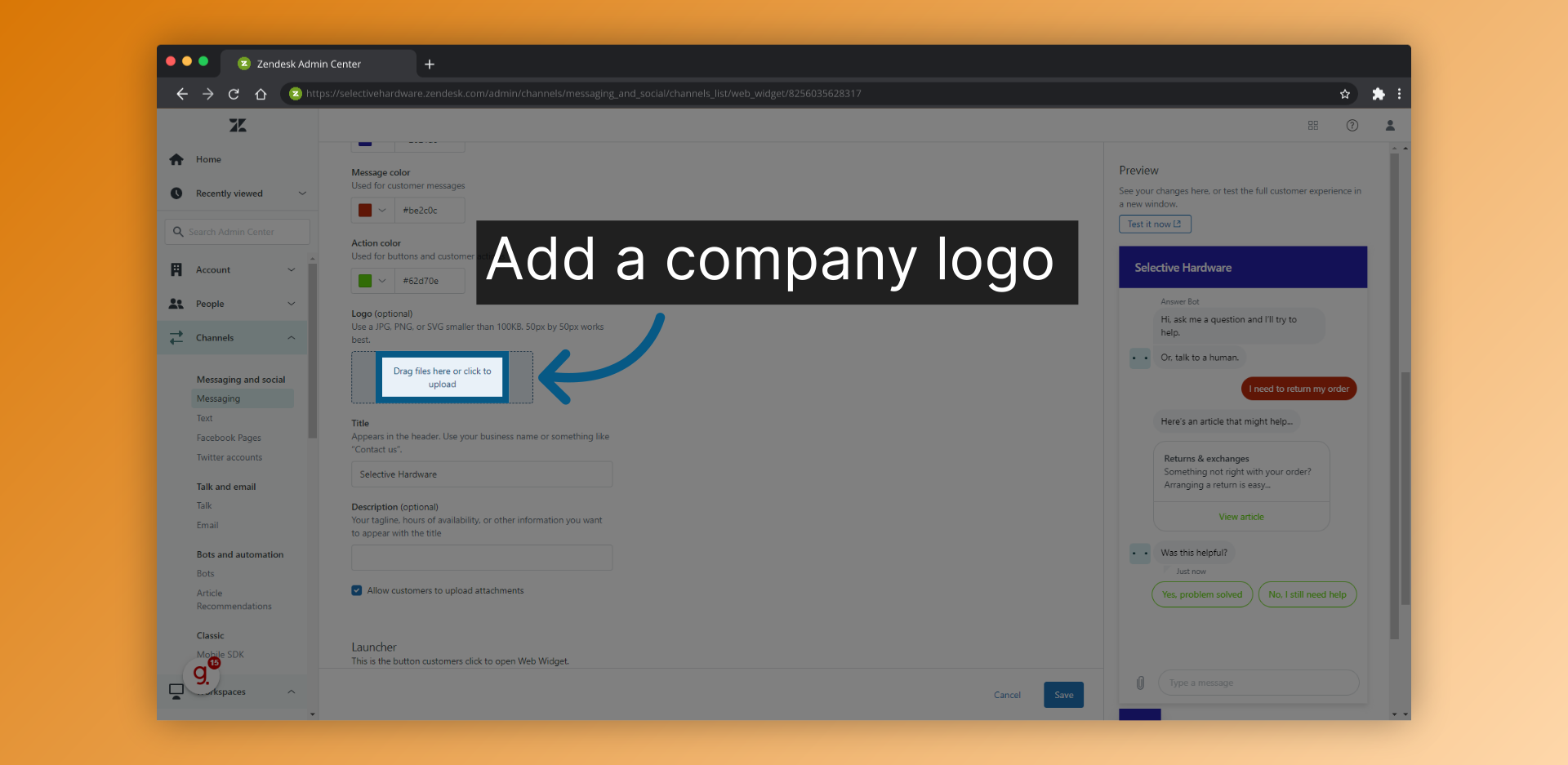
8. Add a company logo
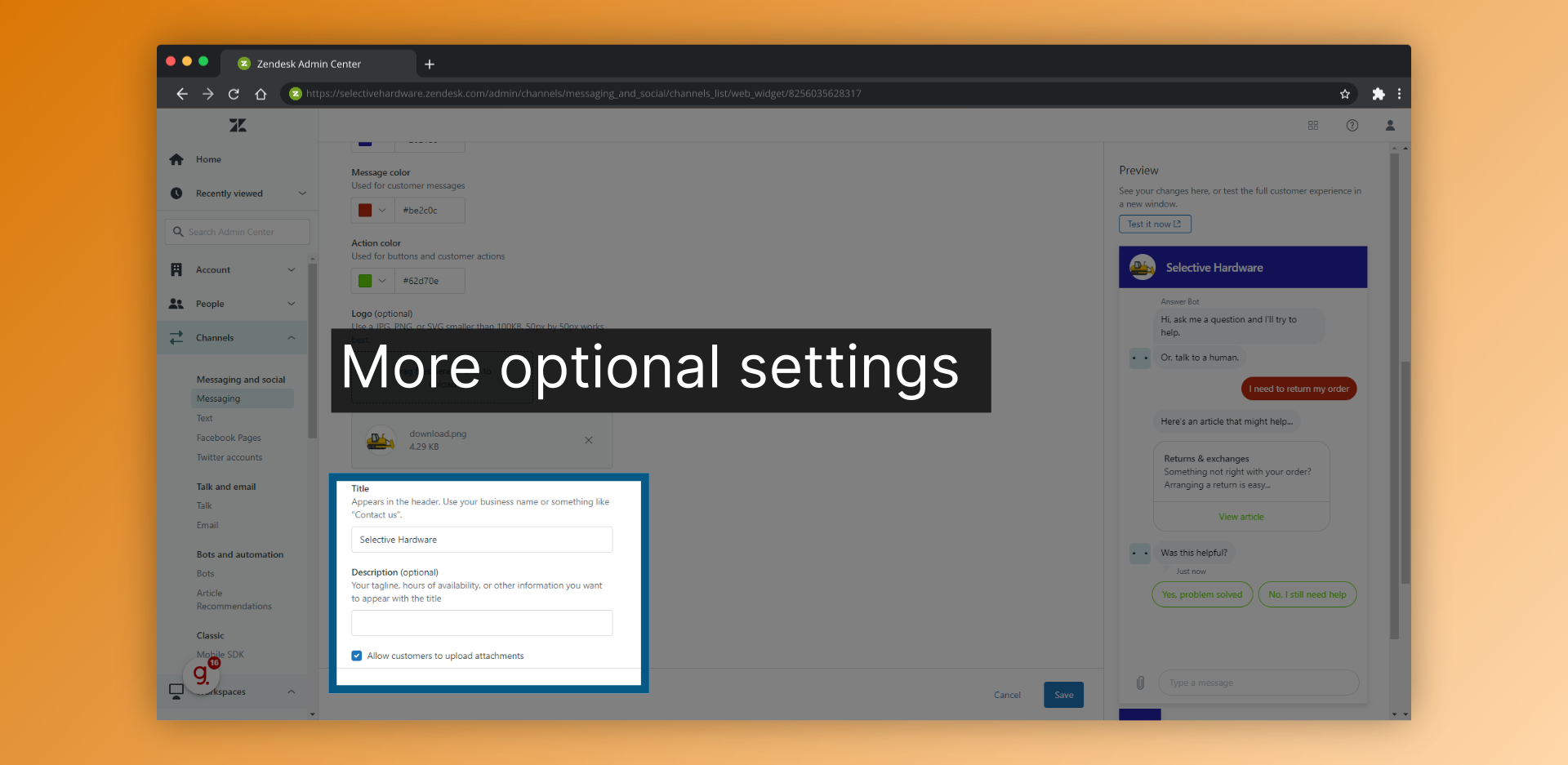
9. More optional settings
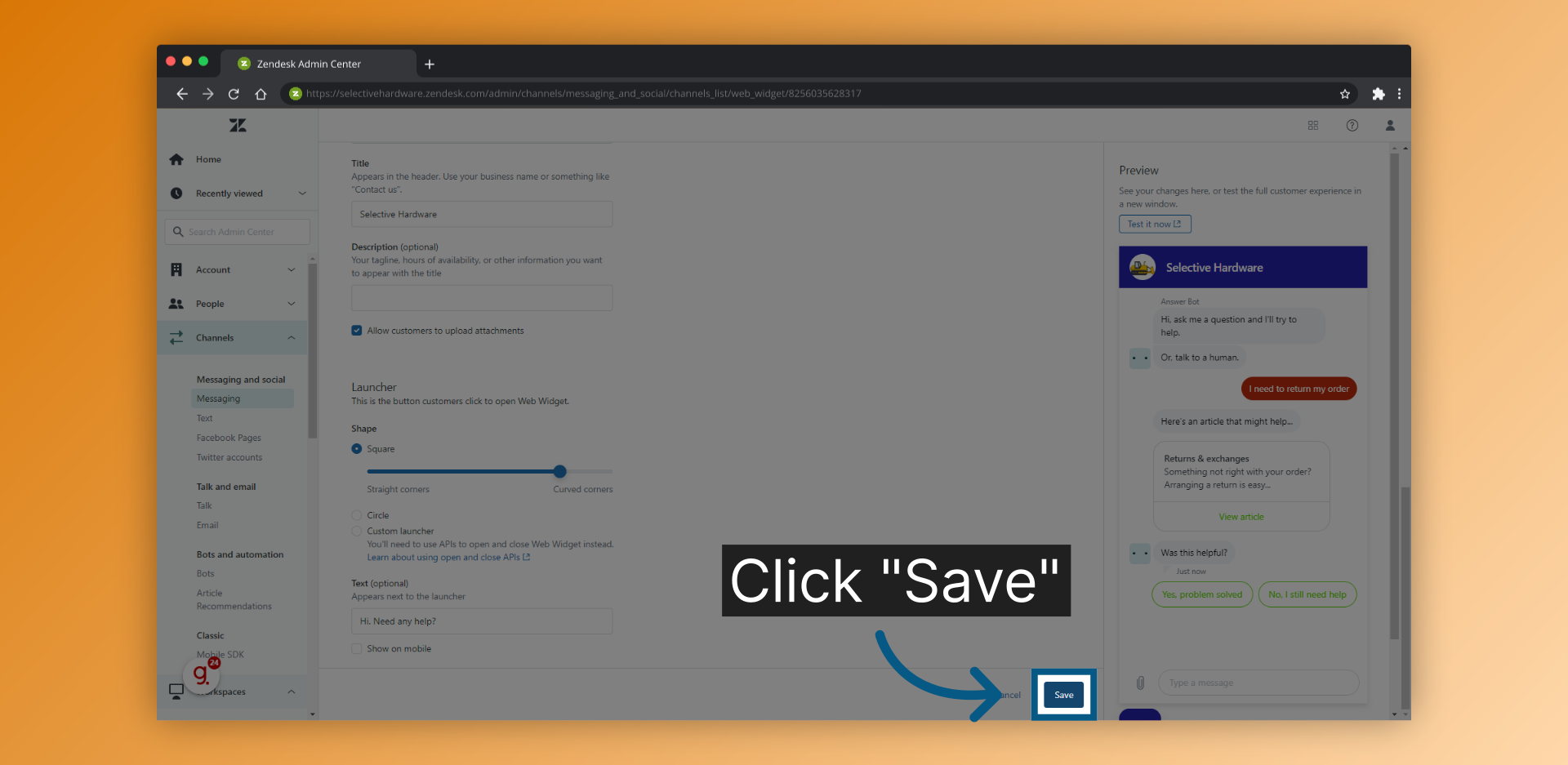
10. Click "Save"
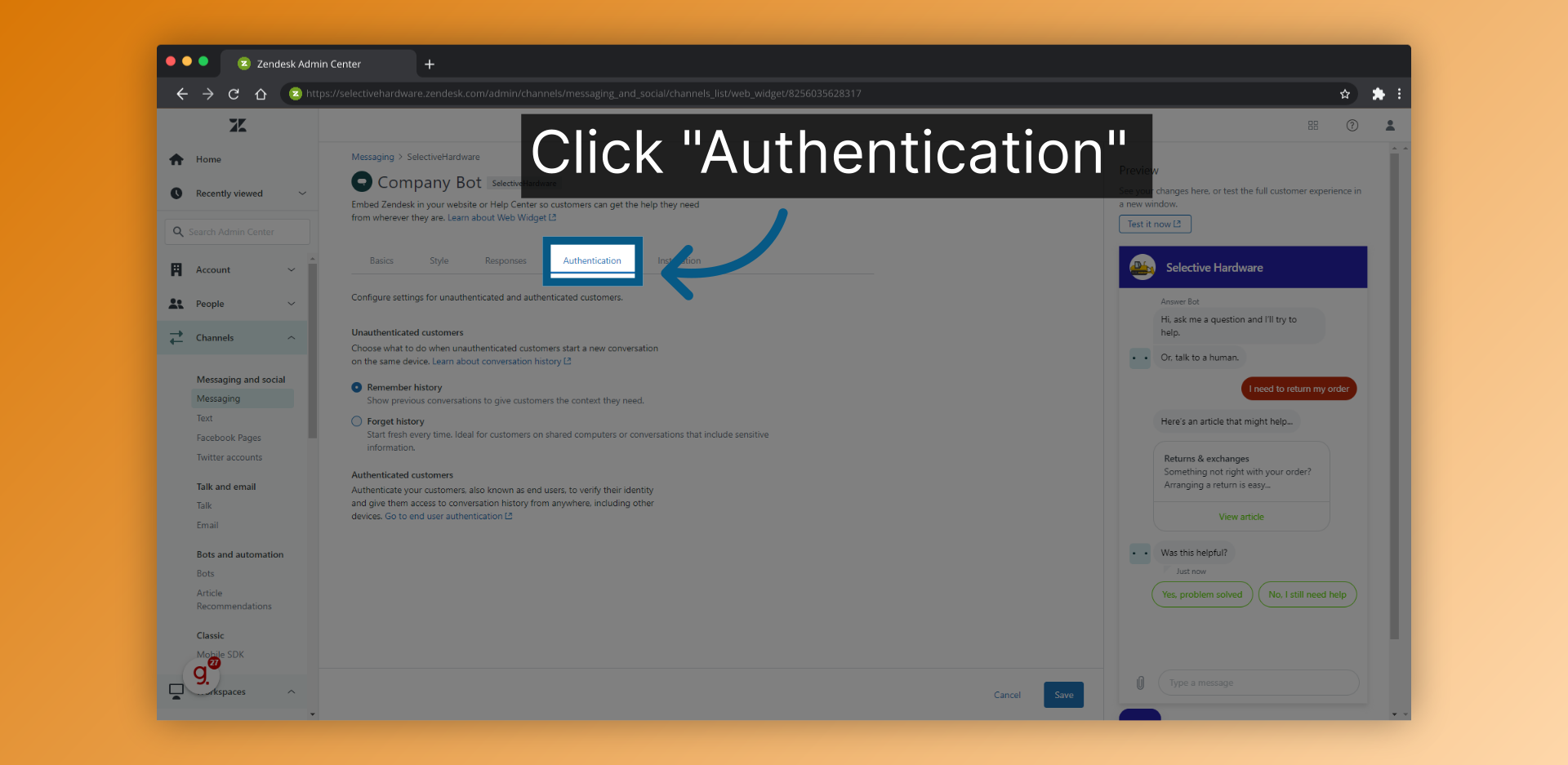
11. Click "Authentication"
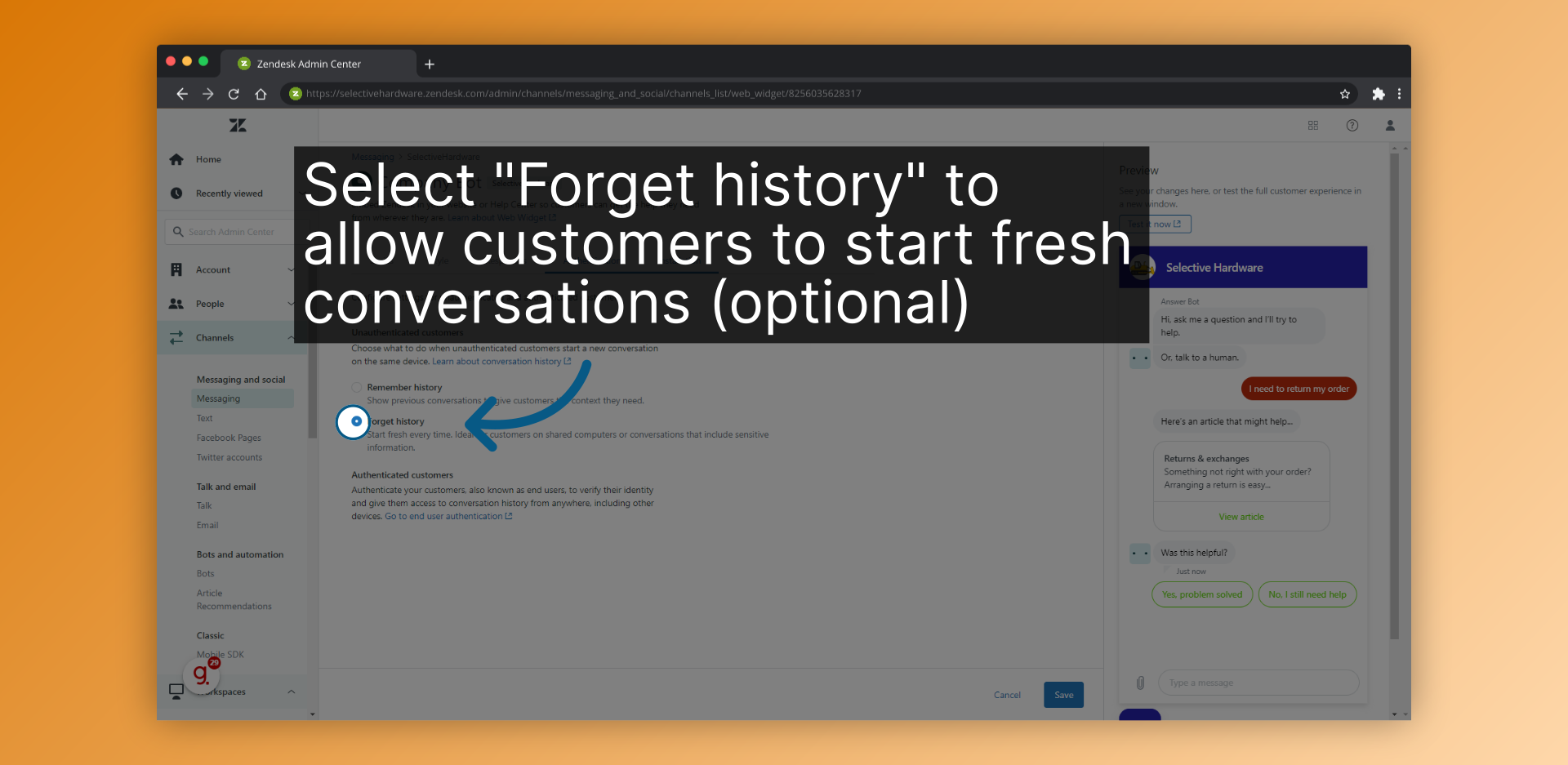
12. Select "Forget history" to allow customers to start fresh conversations (optional)
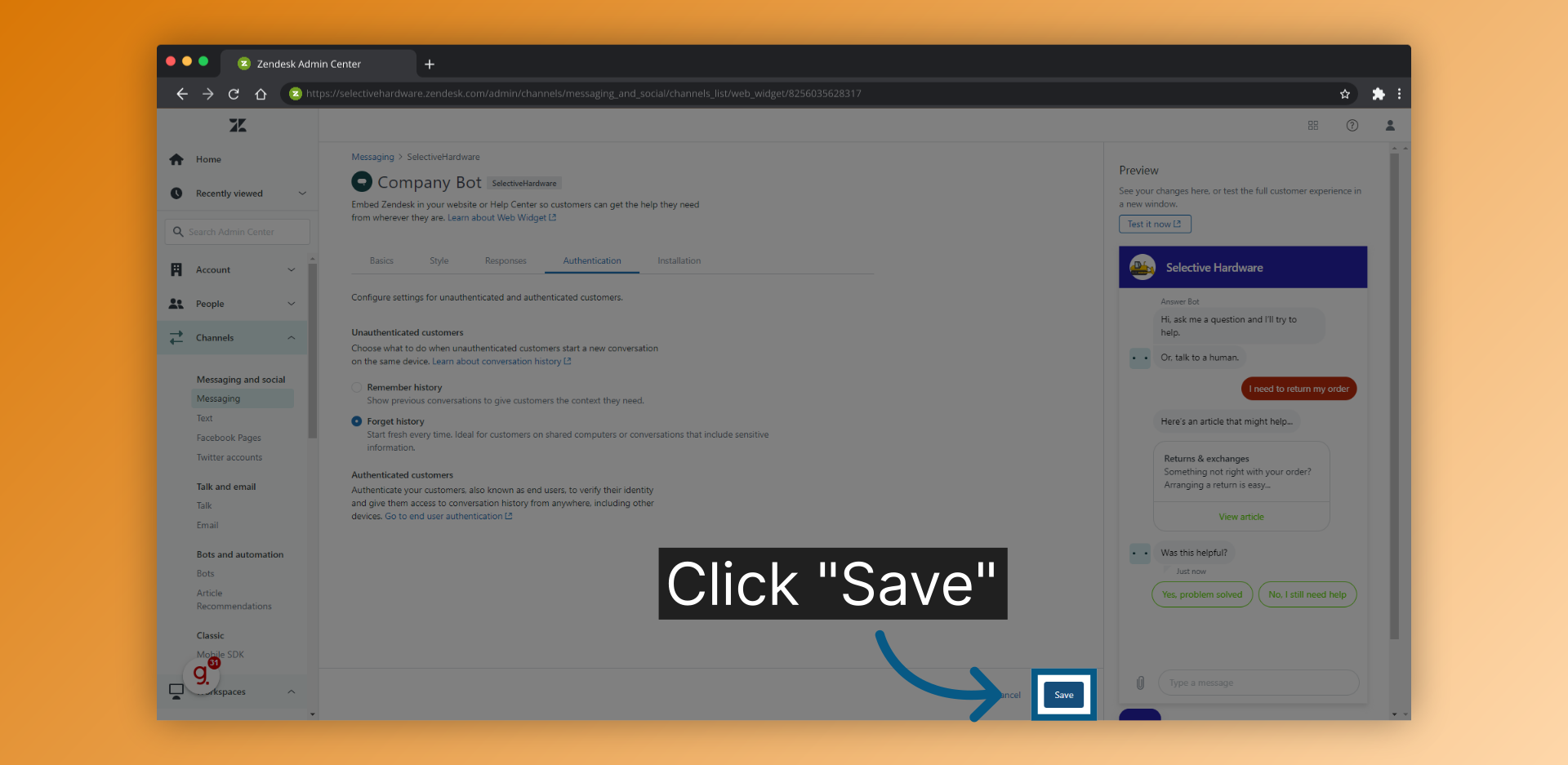
13. Click "Save"
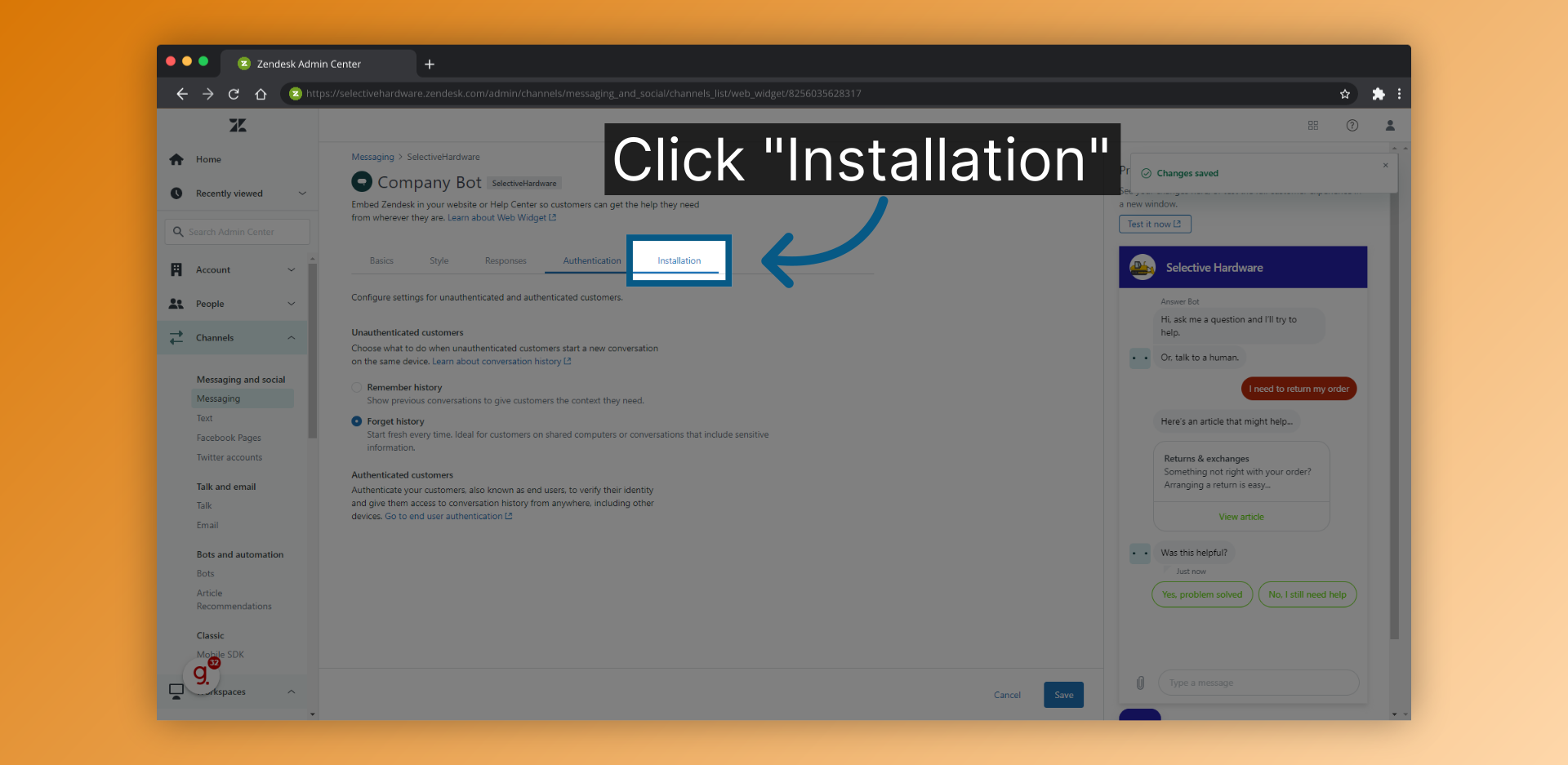
14. Click "Installation"
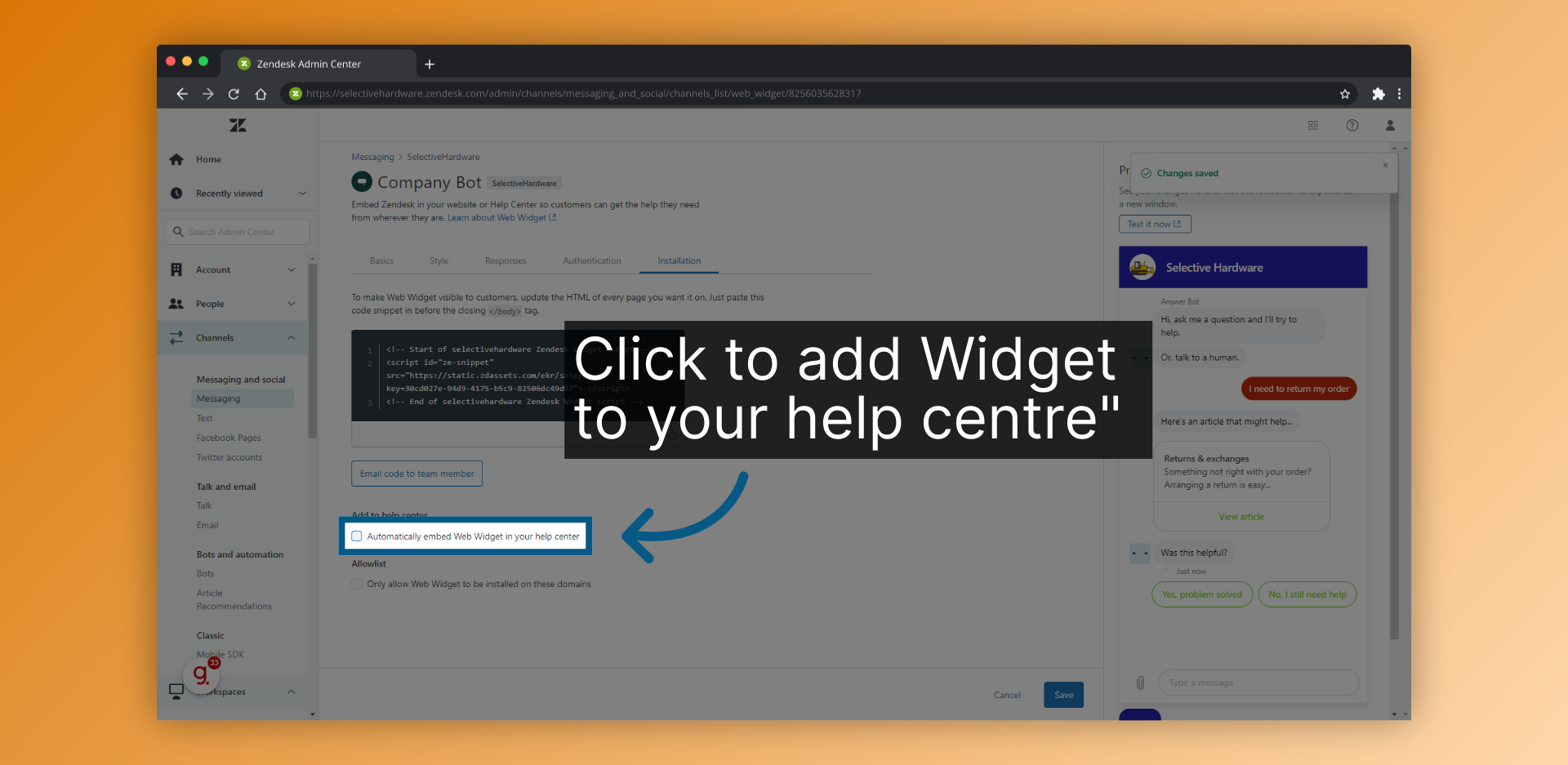
15. Click to add Widget to your help centre"
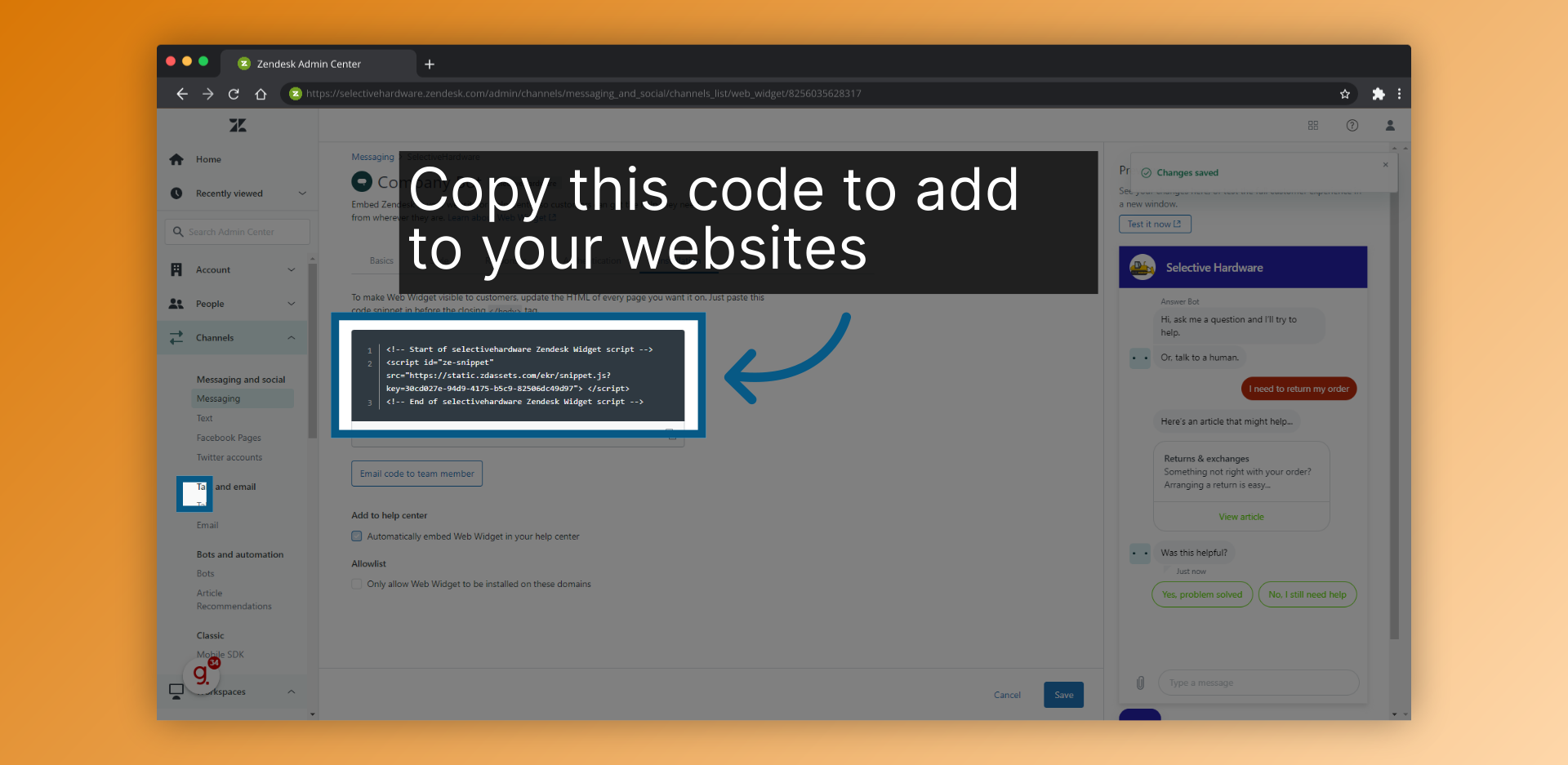
16. Copy this code to add to your websites
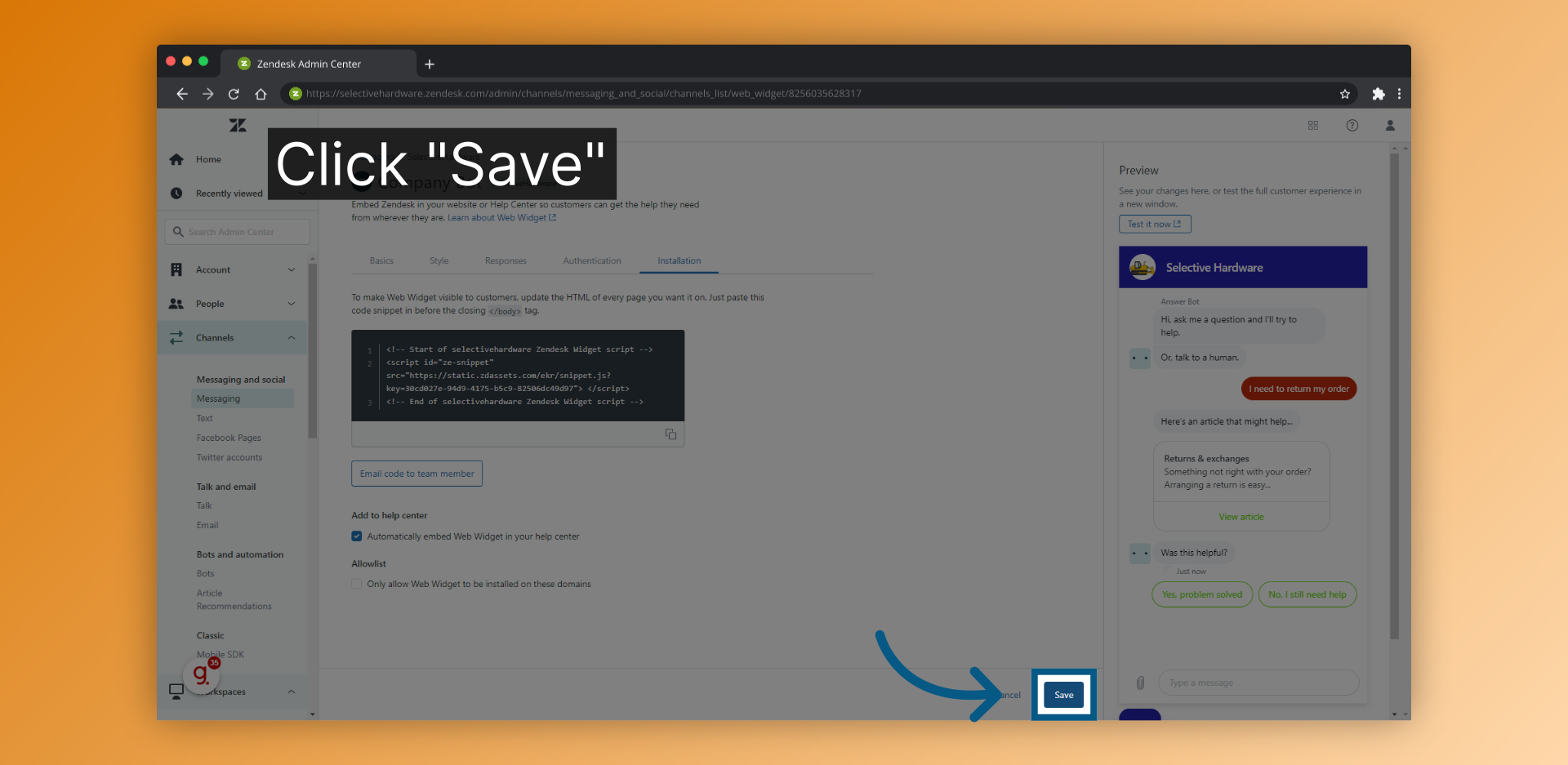
17. Click "Save"
Powered by
Guidde
Continue Watching on Guidde
Guidde magically creates video documentation with AI.
Get started


.avif)


